Advent Calendar Day 20: Backup Job Pre and Post Scripts
Advent Calendar Day 20: Automating with Pre and Post Job Scripts
Welcome to Day 20 of our Veeam Blog Advent Calendar! Today we’re exploring a powerful automation feature: pre and post job scripts for backup jobs.
This is really a nifty little feature that genuiely gets overlooked to often and when I talk to customer who have pretty custom environment I look to this feature to help me out as it allows us to play outside the box a little bit by creating custom workflows for otherwise tricky applications.
The reason may not always be that complicated and could just be that you want to send a notification to a Slack channel or something to let the rest of the team know the job has been completed successfully.
I have actually written an article before about Github Backups which leverages this exact process to dump out github repos to object storage so we can back them up. The point here being is it really shows the art of the possible, such a seemingly simple feature that doesnt get the spotlight can actually be the main charecter in some cases.
Anyways, lets dive into how this works and some examples, grab an extra strong coffee cause we getting to the end of this advent calendar and let’s get into it!
What Are Job Scripts?
Veeam allows you to attach scripts to backup jobs that run:
- Pre-job: Before the backup job starts
- Post-job: After the backup job completes (success or failure)
These scripts can be PowerShell, batch files, or any executable your backup server can run.
Setup
I feel like its becoming cliche at this point but it really is this simple.
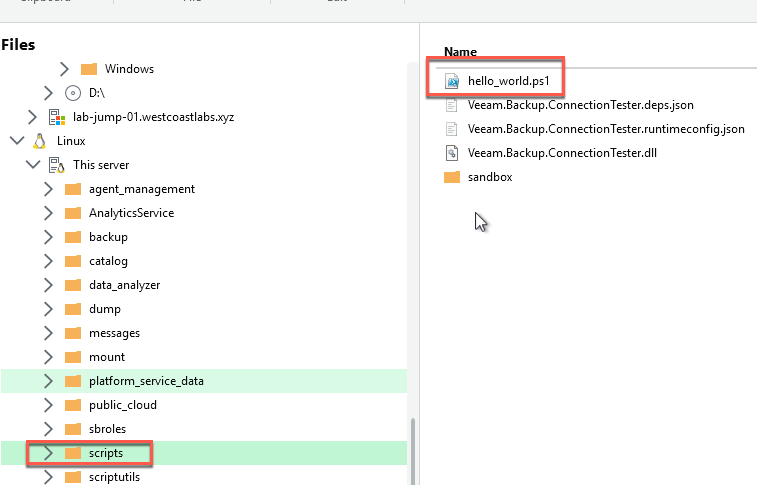
What we will do here just run a simple hello world command to show that the script is running but first we need to copy the script to the VBR server using the file copy node.
- Open the Veeam Backup and Replication Console
- Navigate to the “Home” node
- Select your backup Job (in my case ill use my Windows Backup job)
-
Navigate to the Storage Tab
- Open the Scripts Tab
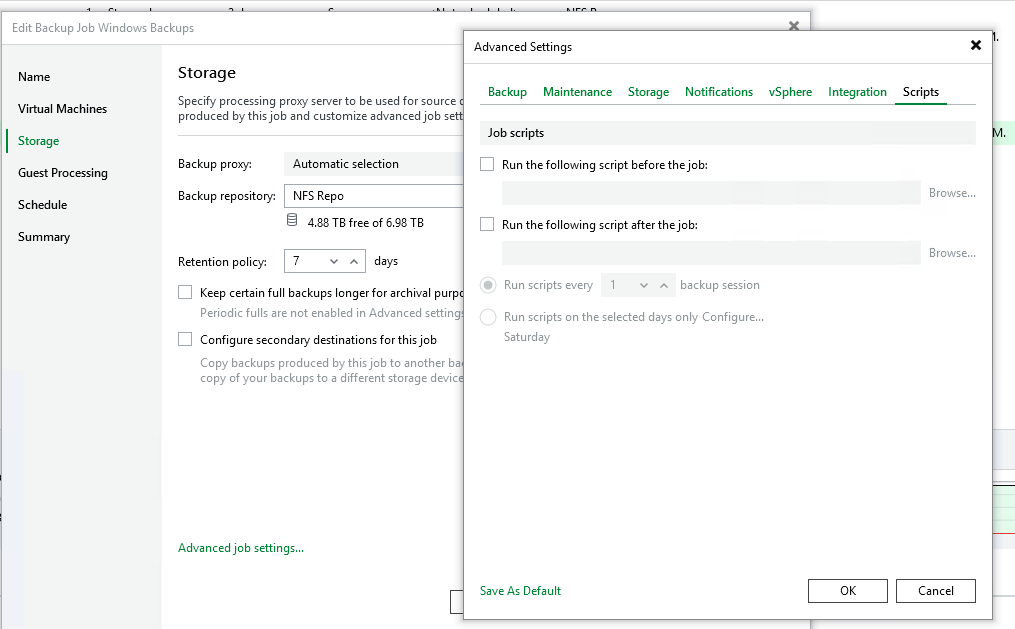
- Enable “Run Pre Script”
- Select the Hello World Script we copied across
- Finish and run the job
-
Now if we check the job run we can see that our script executed successfull
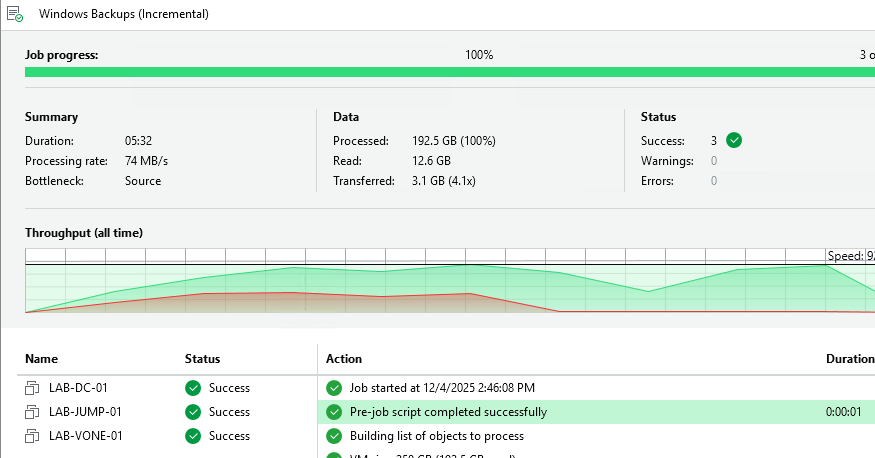
Adn if we check the logs we can see the output of the script..

Wrapping Up
Now, this was obviously a fairly rudimentary example, simply running “Hello World” but I’m sure it truly highlights the power of this underrated feature hiding in plain sight.
Job scripts transform Veeam from a backup solution into a backup orchestration platform. You’re not just backing up data; you’re automating entire workflows around those backups. Whether it’s sending Slack notifications to your team, integrating with ticketing systems, triggering application-specific pre-backup tasks, or even dumping GitHub repos to object storage (like I showed in my previous article), the possibilities are genuinely endless.
This seemingly simple feature doesn’t get the spotlight it deserves, but as I’ve shown, it can actually be the main character in some pretty complex automation scenarios. The beauty is that you can start small—maybe just a notification script—and then expand as you discover more use cases.
So whether you’re managing custom environments, integrating with third-party systems, or just want to add that extra layer of automation to your backup workflows, job scripts make it all possible.
See you tomorrow for Day 21 where we’ll start exploring SureBackup! 🎄
Automate all the things, and happy scripting! 🎁