Advent Calendar Day 19: Publishing VM Disks to Another Server
Advent Calendar Day 19: Publishing VM Disks to Another Server
Welcome to Day 19 of our Veeam Blog Advent Calendar! Today we’re diving into a powerful but often overlooked feature: publishing virtual machine disks to another server.
This is one of those features that doesn’t get the spotlight it deserves, but when you need it, it’s absolutely invaluable. Whether you’re troubleshooting, migrating data, or performing forensic analysis, the ability to attach VM disks from your backups to a different server opens up some really interesting possibilities.
Grab your coffee (or tea, I’m not judging), and let’s get into it!
The Scenario
Picture this: You need to access data from a VM’s disk, but you don’t want to (or can’t) restore the entire VM. Maybe you need to extract some files, analyze logs, investigate a security incident, or copy specific data to another system.
Or perhaps you’re dealing with a corrupted VM that won’t boot, but you know the data on the disk is fine. You need to access that disk without going through the hassle of a full VM restore and recovery process.
Traditional approaches would involve restoring the entire VM, spinning it up somewhere, and then accessing the data—which is time-consuming and resource-intensive. Or maybe you’d try to restore individual files through the file-level restore wizard, which works, but isn’t ideal when you need to browse around or don’t know exactly what you’re looking for.
This is where Veeam’s disk publishing feature becomes your secret weapon. You can take a virtual disk from any backup restore point and attach it directly to another server. Quick, clean, and incredibly flexible.
How Veeam Disk Publishing Works
Veeam allows you to publish individual VM disks from your backups to any Windows or Linux server in your environment. The disk appears as a regular local disk, and you can browse it, copy data, or perform whatever operations you need.
Here’s the beauty of it: the disk is published directly from the backup storage, so you’re not consuming additional space by restoring it. It’s fast, efficient, and non-intrusive.
Step-by-Step: Publishing a VM Disk
Let me walk you through the process:
-
Open the Veeam Backup and Replication Console
- Navigate to the “Home” node
- Select the “Disk” tab
- Select the backup containing the VM you need
- Right-click on the VM → Publish Disk
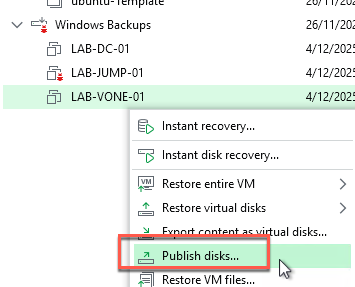
-
In the Backup Browser, select the restore point you want to work with
- Click “Next”
- Choose which disk(s) you want to publish
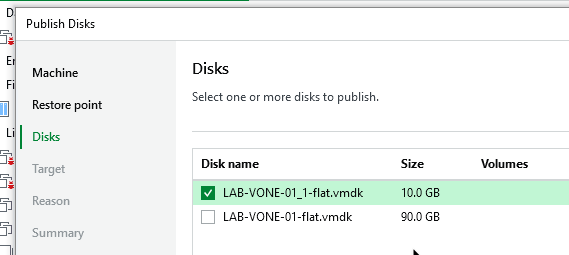
- Select the target server (in my case, I’ll use my jump host)
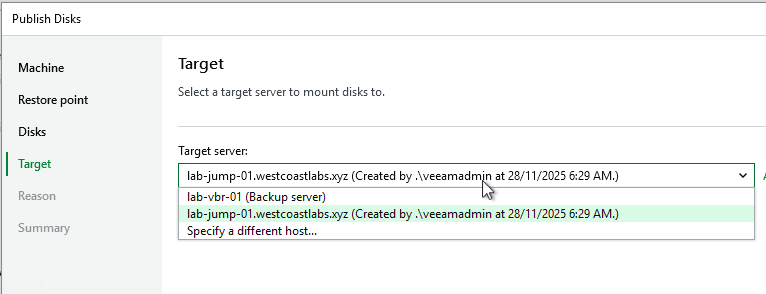
- Click “Finish”
Just before I finalize the disk publish, we can see that currently on my jump server I only have a single disk presented to that VM. But once I hit finish, Veeam will automatically present the disk from backup to my jump server and allow me to browse it as if it were physically attached.
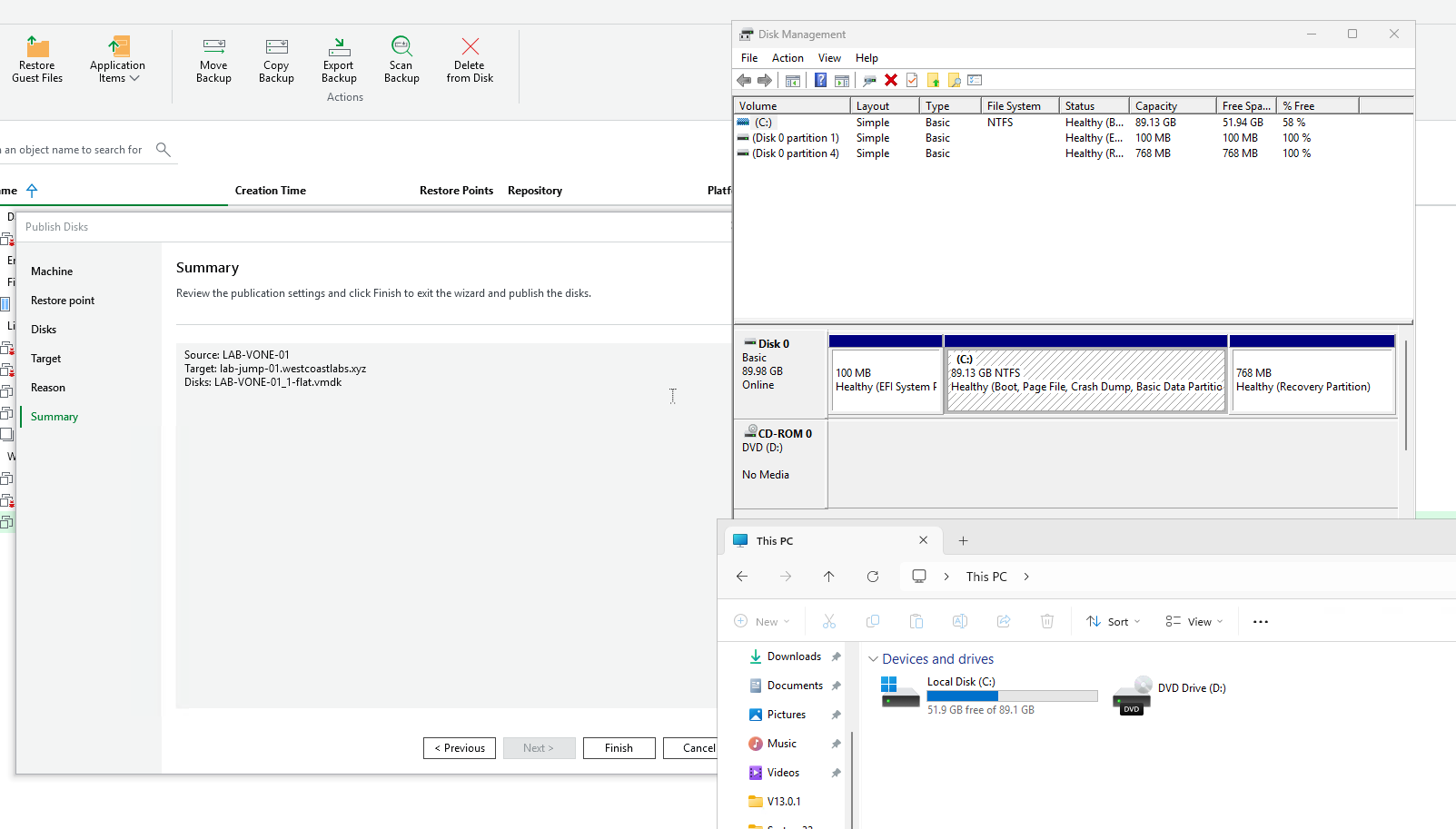
And browsing through my “Critical Data,” we can see that all my files are there.
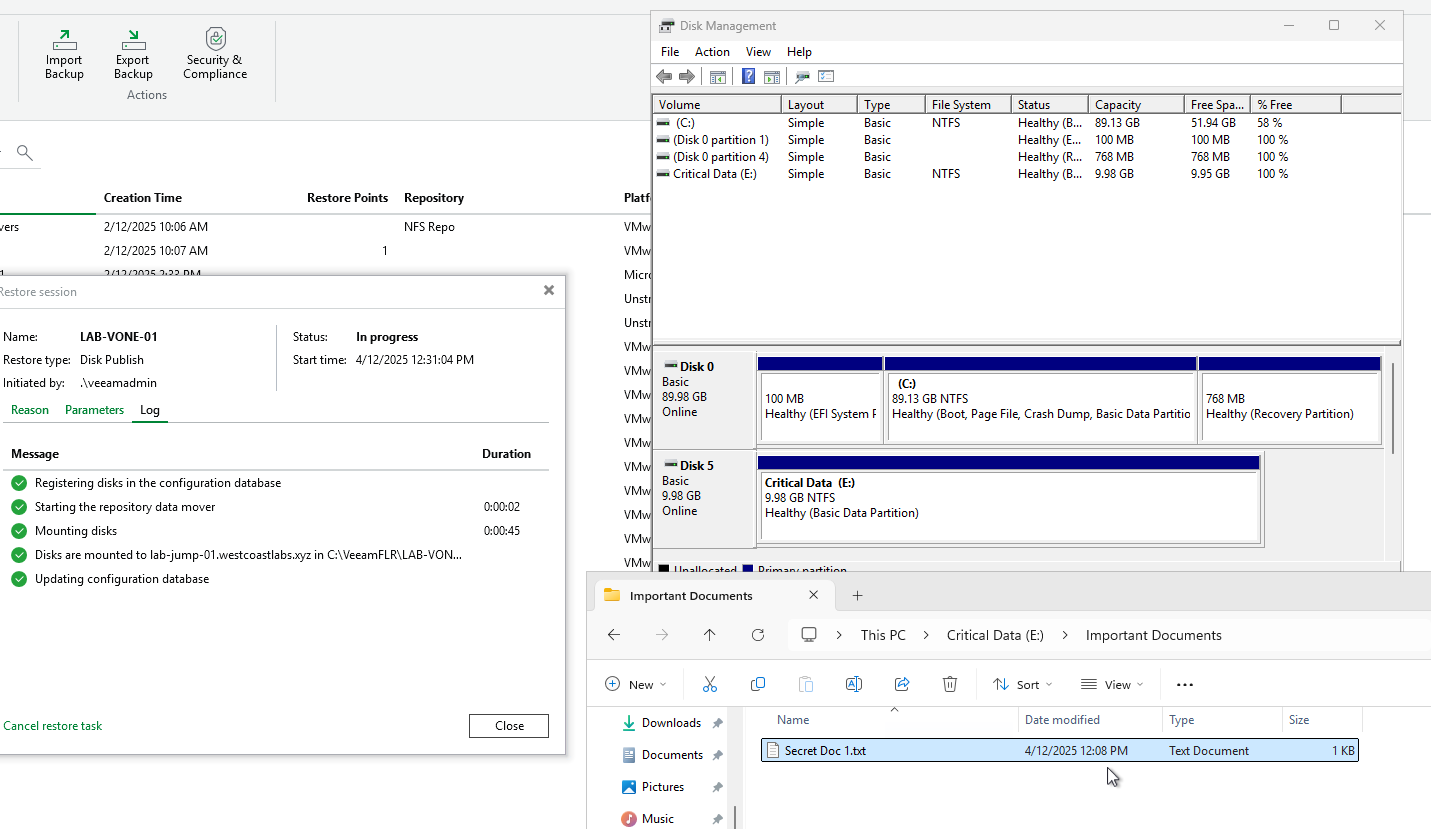
When you’re done, simply unpublish the disk from the Veeam console, and it’s cleanly detached. No leftovers, no cleanup needed.

Real-World Use Cases
Security Investigations: When you need to perform forensic analysis on a VM without disturbing the original or creating a full restore, publish the disk to your forensic workstation and analyze away.
Data Migration: Moving specific data from an old VM to a new system? Publish the old VM’s disk, mount it on the new server, and copy what you need directly.
Application Troubleshooting: Developers need to examine application logs or database files from a specific point in time? Publish the disk to their test server without disrupting production.
Corrupted VM Recovery: VM won’t boot, but you know the data is intact? Publish the disk to another server and extract everything you need without fighting with a broken OS.
Why This Matters
Disk publishing is all about flexibility and efficiency. You’re not locked into rigid restore workflows—you can access your backup data in whatever way makes the most sense for your situation.
It saves time by eliminating unnecessary full VM restores. It saves storage by not creating temporary copies. And it gives you surgical precision when you need to access specific data without the overhead of a complete recovery operation.
This is one of those features that, once you discover it, you’ll wonder how you ever managed without it. It transforms your backups from a simple recovery mechanism into a flexible data access platform.
Wrapping Up
Veeam’s disk publishing feature is one of those capabilities that exemplifies why Veeam is so powerful—it’s not just about restore, it’s about giving you flexible access to your backup data in whatever way you need it.
Whether you’re troubleshooting, investigating, migrating, or just need quick access to specific data, being able to publish VM disks directly from your backups is incredibly powerful.
See you tomorrow for Day 20! 🎄
Stay curious, stay flexible, and as always, happy backing up! 🎁