Advent Calendar Day 18: Compare with Production for Active Directory
Advent Calendar Day 18: Finding What Changed in Active Directory
Welcome to Day 18 of our Veeam Blog Advent Calendar! Today we’re exploring a powerful feature for Active Directory recovery: Compare with Production.
When something goes wrong in AD, you often need to know what changed. Was a user account modified? Did group membership change? Veeam’s Compare with Production makes finding these changes simple.
This is something that has been in Veeam for ages (and not only for Active Directory), and it gets overlooked so often. To this day, when I do customer demos, I make sure to highlight this feature. The reaction is always the same, whether they’ve been using Veeam for years or are brand new to it, it’s always the same surprised look at just how awesome this is.
Grab your coffee, or maybe an Irish coffee this time, let’s get into it!
The Challenge
Active Directory issues aren’t always obvious. Sometimes it’s not a deleted object but a modified attribute.
If you’ve ever done any Exchange upgrades (am I the old guy now?) or any other upgrade that affects AD attributes, you’ll know just how painful this can be, especially at scale. Having to roll back not just your change but also having to revert the AD can be nearly impossible, knowing exactly what’s changed and for whom is a challenge.
Being able to quickly compare your backup data to what’s in production can prove invaluable and lower the time it takes to recover.
Veeam’s Compare with Production
Veeam Explorer for Active Directory includes a comparison feature that shows you exactly what changed between your current AD state and a backup point.
This isn’t just object-level comparison, it’s attribute-level detail showing specific properties that changed.
How to Use It
The workflow is straightforward. (I feel like I’ve said this in every blog so far, I mean, it really just works!)
-
Open the Veeam Backup and Replication Console
- Navigate to the “Home” node
- Select the Disk tab
- Select the backup in question
- Select your AD server (in my case, LAB-DC-01)
- Right-click → Restore Application Items
- Select Active Directory Objects
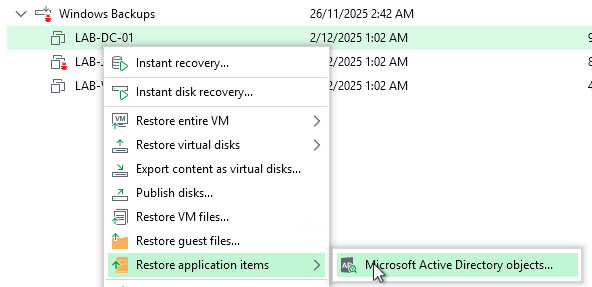
- Navigate to the “Home” node
This will launch the Veeam Explorer for Active Directory. Once you select the restore point, we’ll be able to browse your AD database. What we can do from here is select the account and restore only the attribute we need.
In the screenshot below, I’ve changed my title to “Veeam Expert,” whereas the previous value was blank in my lab. So how does Veeam see that?
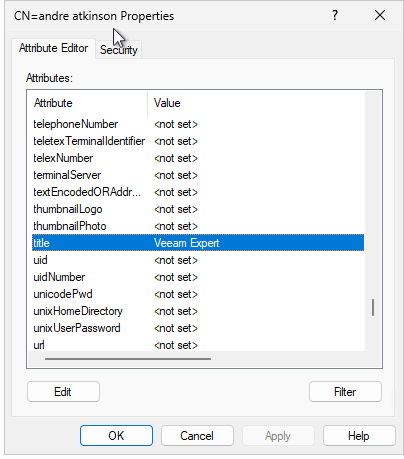
Well, once we have the explorer open, we can:
- Expand the AD database
- Select my user
- Enable “Compare with Production” and “Show Changed Objects Only”
- Right-click the user
- Select “Compare Object Attributes”
- Right-click the user
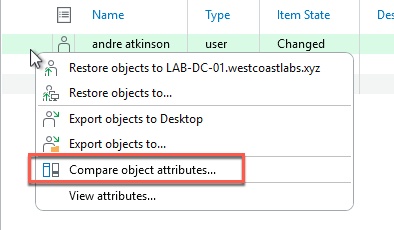
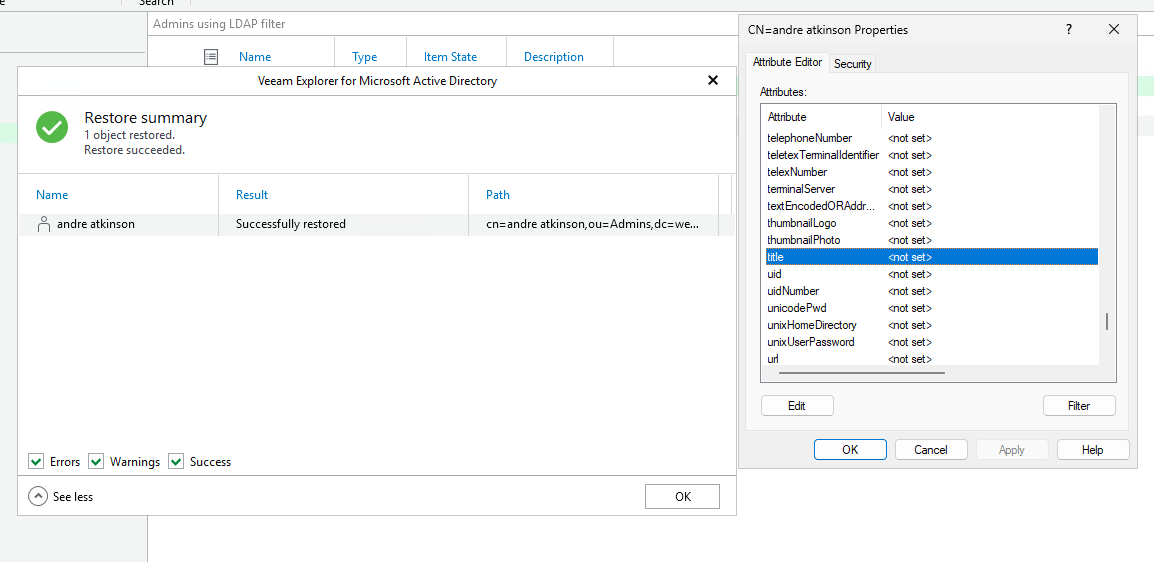
We can see that it is showing me a list of attributes that have changed, including my title.
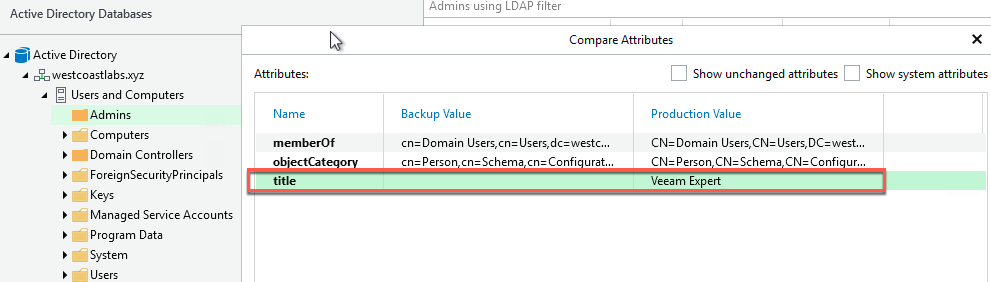
What we can do now is simply right-click on the attribute and restore it back to the value we had within our backups. We can verify this by checking ADSI Edit and seeing that our value has returned to its original state.
Real-World Scenarios
Scenario 1: Compromised Account A user account was modified by an attacker. Compare the current state with a backup from before the compromise to see exactly what changed—group memberships, permissions, login scripts, etc.
Scenario 2: Group Membership Issues Users suddenly lose access to resources. Compare the relevant security group with a backup to identify removed members.
Scenario 3: Organizational Unit Changes An OU’s group policies or delegation settings were modified. Compare to identify what changed and needs to be restored.
Scenario 4: Bulk Import Gone Wrong A bulk user import modified existing accounts incorrectly. Compare affected accounts to see what needs to be corrected.
Why This Matters
Active Directory recovery isn’t always about restoring deleted objects. Often, it’s about finding and fixing subtle changes that break functionality, modified group memberships, changed permissions, or altered attributes.
When something goes wrong in AD, especially at scale, pinpointing exactly what changed can be nearly impossible without the right tools. Manual comparisons are time consuming and error-prone. You might know something’s wrong, but tracking down the specific attribute that changed across hundreds or thousands of objects is like finding a needle in a haystack.
Veeam’s Compare with Production feature turns what could be an hours-long (or even days-long) investigation into a minutes-long comparison. You get definitive, attribute-level answers about what changed, when it changed, and can restore with surgical precision. Whether you’re investigating a security incident, troubleshooting access issues, or recovering from a botched bulk import, this visibility is invaluable.
Wrapping Up
Veeam’s attribute comparison for Active Directory is one of those features that seems simple but becomes invaluable when you need it. Instead of guessing what changed or manually comparing objects, you get a clear, detailed view of differences.
Whether it’s security investigation, troubleshooting access issues, or undoing mistakes, attribute comparison gives you the visibility you need.
See you tomorrow for Day 19! 🎄
Stay curious, stay informed, and as always, happy backing up! 🎁