Advent Calendar Day 9: Veeam Security - During a backup
Advent Calendar Day 9: Inline Malware Detection & File System Activity Analysis - During Backup Security
Welcome to Day 9 of our Veeam Blog Advent Calendar! Yesterday we explored Data Observability & Analytics, the Incident API, and the Security & Compliance Analyzer—understanding your data landscape and identifying risks before backup. Today, we’re moving to the “During” phase: protecting your data inline whilst we actually perform the backup.
This is a crucial step. We have built the groundwork yesterday, identifying what we need to protect and how we plan on doing that. We have a few backup jobs configured, and now data is flowing into our backup repos as quickly as the coffee is flowing through our veins.
But what if that data is already infected? What if ransomware encrypted files yesterday and you’re about to backup the encrypted versions? How do we detect this and perform some actionable items on this data?
Well, that’s what we plan to discuss today, so please grab a coffee, get into the festive spirit, and let’s crack on with today’s topic:
Inline Malware Detection & File System Activity Analysis
So I purposefully chose these two items from the list of many things Veeam can do for two reasons: they are awesome, and secondly, they go hand in hand.
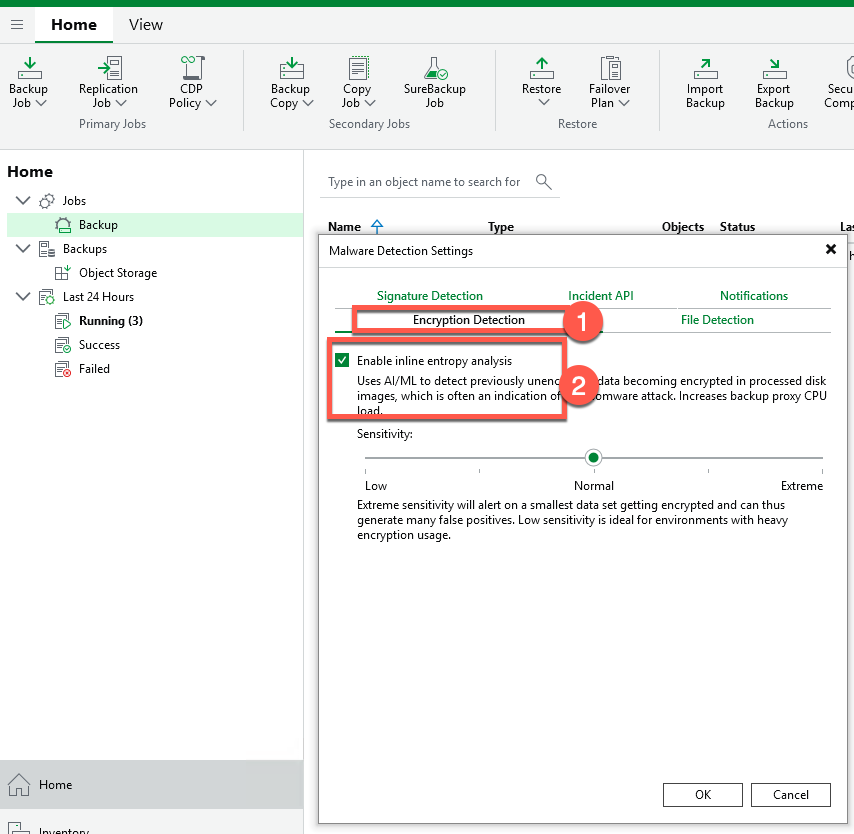
So what are these things I keep talking about? Well, Veeam performs inline (keyword here) entropy analysis as the data blocks are read during a backup. What this means is we’re basically leveraging some built-in AI and machine learning to scan the blocks as they pass through your Veeam proxy server. This does mean a small CPU impact, but essentially gives us the ability to detect any encryption-type events as we’d see the high level of change rate, extension changes, and just the massive amount of different blocks that are usually indicative of a ransom-type event.
As I mentioned, whilst not strictly required, the two do work pretty hand in hand. With the addition of File System Activity Analysis, we can scan the guest VM and detect the appearance of suspicious files, the deletion of a large number of files, etc. This does require guest indexing to be turned on.
Setting this up is super simple:
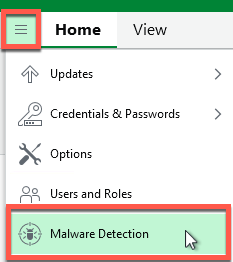
- Open the VBR console
- Select the Hamburger Menu
- Select Malware Detection Settings
- Select the Hamburger Menu
- Select the Encryption Detection Tab
- Enable Inline Entropy Analysis
- On the same screen, Select File Detection
- Enable File System Activity Analysis
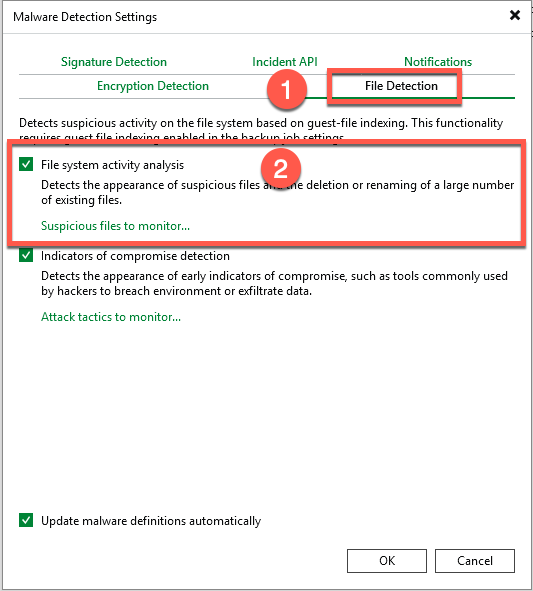
And that’s it… seriously, I know—two tick boxes and we have just enabled two incredibly powerful security features right out of the box. We keep saying Veeam just works ;)
Seeing it in Action
Now with that all configured, we simply just take a backup and let Veeam do its magic.
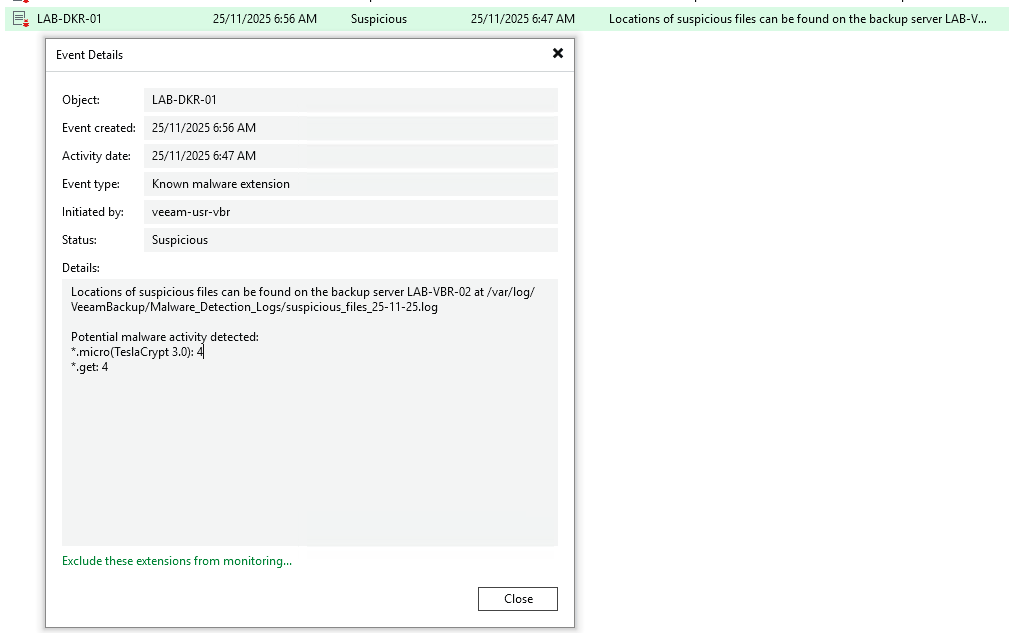
As we can see here, Veeam took a backup of my Docker server and has found some potential malware activity, which can then let me trigger an alert off to my SIEM system or alert my SOC via the epic dashboards we created previously, or even scan them for a deeper analysis, which is a great segue into the next post: what we can do AFTER a backup has been taken.
Wrapping Up
I hope this is starting to highlight the power that Veeam brings—not just in protecting your backups, but in actively defending against threats as they happen. By enabling inline malware detection and file system activity analysis, you’re adding crucial layers of defense that catch ransomware and other threats at the point of backup, before they can fully compromise your data protection strategy.
These features work seamlessly in the background with minimal performance impact, yet they provide invaluable early warning signs of potential security incidents. Combined with the observability tools we discussed yesterday, you now have comprehensive protection both before and during the backup process.
Tomorrow, we’ll complete the security trilogy by exploring what happens AFTER a backup—including advanced threat scanning and response capabilities.
See you tomorrow for Day 10! 🎄