Advent Calendar Day 8: Veeam Security - Before a backup
Advent Calendar Day 8: Veeam Data Observability & Analytics - Before Backup Security
Disclaimer:
I’m not a professional developer, and this content is intended to demonstrate the “art of the possible” rather than serve as production-ready guidance. Use these features with caution, and test thoroughly in your environment before relying on them for critical tasks.
Welcome to Day 8 of our Veeam Blog Advent Calendar! Over the past week, we’ve been deep in the automation trenches exploring APIs, building workflows, and adding AI intelligence. Today, we’re shifting gears to focus on something equally critical: security.
This marks the beginning of our security-focused series where we’ll explore Veeam’s comprehensive approach to data resilience throughout your data’s lifecycle. We’re not just talking about backing up data; we’re talking about protecting it before, during, and after backup operations.
Today’s focus is on the “Before” phase: understanding your data landscape, identifying security risks, and ensuring compliance—all before you even start backing up.
Understanding Veeam’s Resilience Framework
Veeam approaches data resilience as a complete lifecycle, not just a backup operation. Think of it like securing a building:
Before (Prevention & Detection)
- Veeam Incident API: Automate response to security events
- Security & Compliance Analyzer: Identify misconfigurations before they become problems
- Data Observability & Analytics: Understand what you’re protecting and where risks exist
- Recon Scanner by Coveware: Assess your ransomware readiness
During (Protection)
- Inline Malware Detection: Catch threats as data is backed up
- File System Activity Analysis: Detect suspicious changes in real-time
- Immutability: Make backups tamper-proof
- IoC Tools Scanner: Scan for indicators of compromise
After (Recovery)
- Secure Restore: Ensure clean recovery environments
- YARA Rule-Based Scanning: Deep inspection before restoration
- Veeam Threat Hunter: Hunt for threats in your backup data
- Orchestrated Restore & Clean Room Recovery: Controlled, isolated recovery
- Incident Response by Coveware: Expert guidance when disasters strike
Today, we’re diving deep into the Before phase, specifically Data Observability & Analytics.
Hope you’re ready for this one because this is something I really enjoy talking about, so sit back, grab a cup of coffee, and let’s get cracking with Data Observability & Analytics.
Usually, as a backup admin, you’d be managing multiple VBR servers across multiple sites or customers, and keeping an eye on them all can be a challenge. Have all my backups been successful? Have there been any alerts in the environment? Are we compliant? Has someone created a workload that I’m not protecting? All these questions, in a traditional world, would be pretty difficult to answer without a proper platform to assist.
As a backup admin myself in a previous life, this happened all too often where a DBA would spin up a database or a sysadmin would create a 5TB file share and not tell the backup admins, and then we’d have to figure out how to protect it.
For the longest time, backups have been seen as an afterthought, and I aim to change that and bring Data Resilience to the forefront of your mind when you think of your IT infrastructure. Observability and compliance is key to making that happen.
So with that, let’s get into a few things we can do before a backup even takes place.
1. Security & Compliance Analyzer
This one is a favorite of mine just because of how simple it is. Now I’m sure there are thousands of lines of code to make this work, so thank you devs, but it’s right there built into the VBR console and gives you a quick glance at the state of your Veeam infrastructure.
This is your security assessment tool that scans your Veeam configuration looking for weaknesses:
- Open your Veeam Backup and Replication Console
- Click on the Security and Compliance button
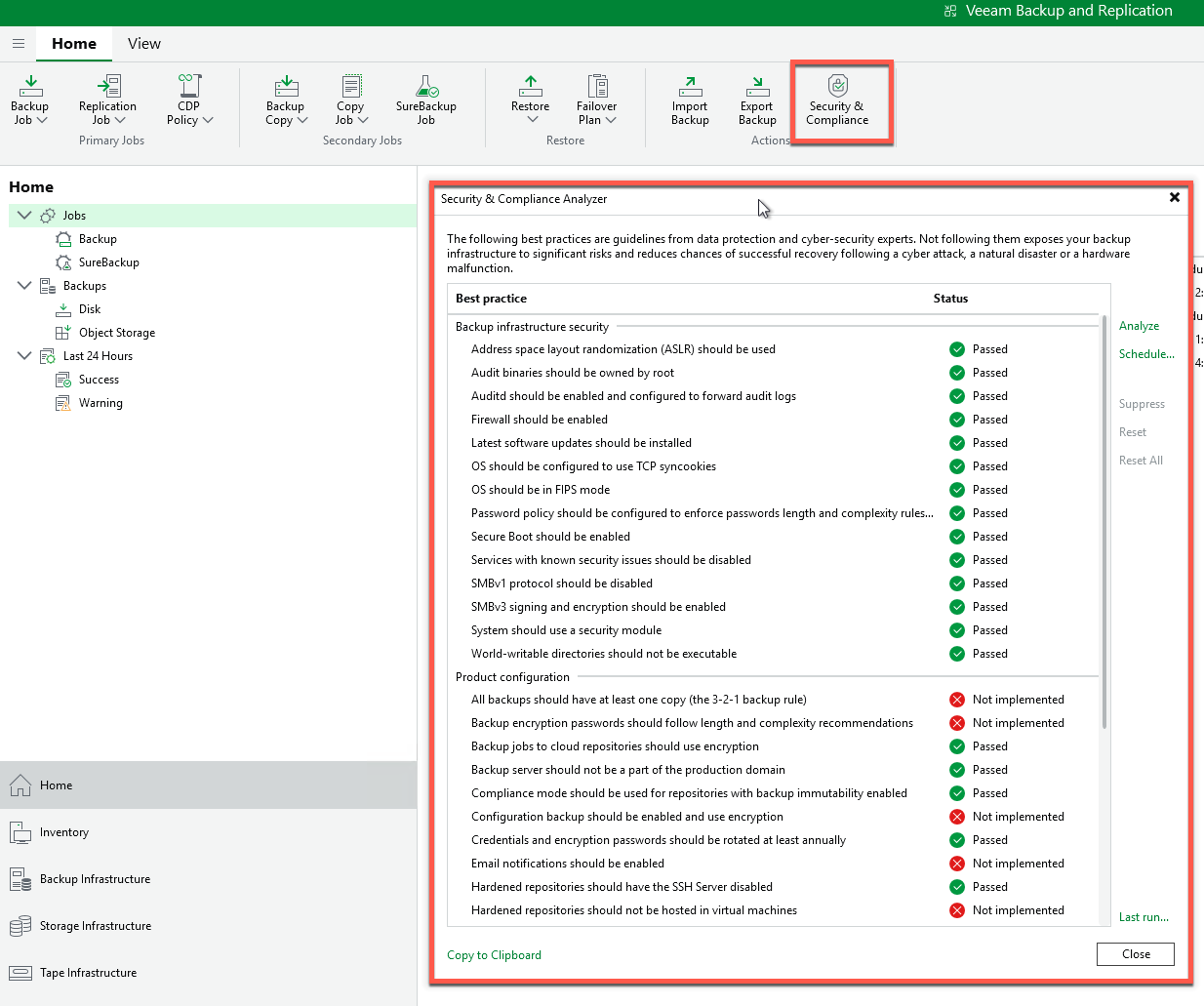
I know—ridiculously simple but so powerful as we now have a list of best practices provided by Veeam to secure your backup environment, which is critical to protecting that last line of defense.
The beauty of this is it can be automated as well, as there are REST endpoints for this (I know, more APIs). So we could have this aligned to our CI/CD process and have it continuously check for any configuration drift—like maybe an admin logs in and disables the firewall. Well, we’d quickly realize that and either automatically re-enable it or flag that up to our SIEM system to let the security team know.
Ridiculously simple and Ridiculously powerful.
2. Veeam Incident API
The Veeam Incident API is a really powerful API that opens up the door to integrations with your security tools. In the previous N8N section, we actually used this API to automatically trigger a backup when malware was detected, but that’s just scratching the surface of what’s possible. This bridges your backup infrastructure with your security tools in ways that weren’t possible before, providing programmatic access to security events, triggering automated backups the moment threats are detected, integrating seamlessly with SIEM, SOAR, and EDR platforms, and enabling custom security workflows like we built with N8N on Day 6. The beauty here is that your backup system becomes part of your security response chain, not just a recovery tool you use after the damage is done.
Real-World Example: Your EDR detects suspicious activity on a VM → Triggers Incident API → Veeam immediately creates an emergency backup → VM gets isolated → You have a clean recovery point from seconds before the attack.
We actually built this workflow earlier in the week! Remember Day 6’s malware detection automation? That’s the Incident API in action.
Setup:
To configure this is straightforward, maybe not as easy as the Security and Compliance Analyzer, but still pretty straightforward.
- Click the hamburger menu
- Select Malware Detection
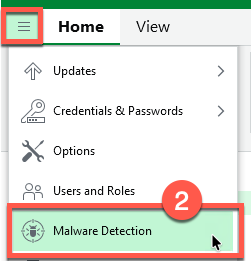
- Select the Incident API tab
- Enable the API
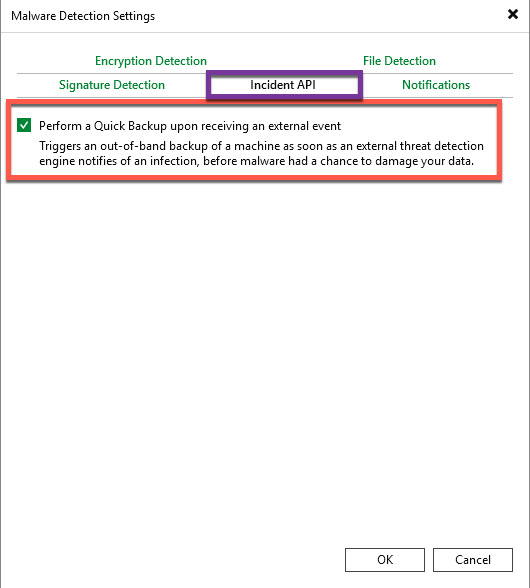
Now when Veeam or your security product detects a security event, an API can be triggered to automatically take a backup of that workload. If we recall from Day 6, we did this in our N8N flow and triggered an alert for our server called LAB-WKR-01, and we can see that a quick backup was taken for this workload because of this setting being enabled.
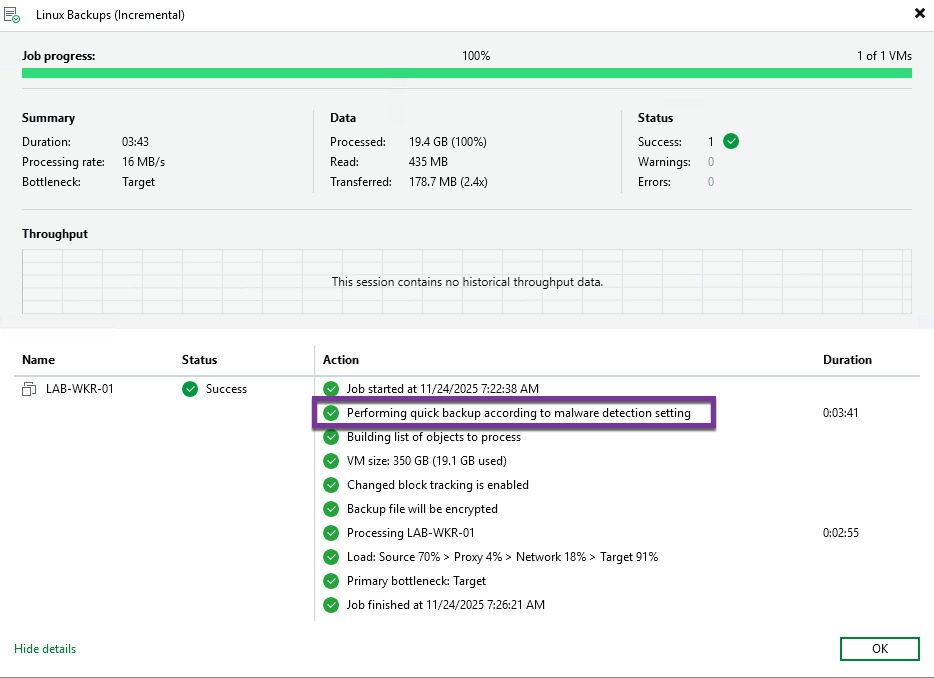
This year personally for me has been a big focus on security and looking at how we integrate more into the wider security stack and bridge the gap between backups and security. This feature alone opens up that door for conversation, so it’s definitely a key favorite of mine.
3. Backup Analytics & Reporting
Probably one of the most underrated features of Veeam is our reporting capability. As I mentioned at the start of this blog, I used to be a backup admin and used to manage multiple backup environments, and because of that I know what a pain it can be to have to sift through 1,000 emails of backup alerts just to find out why something failed overnight or whether all the backups were successful, or hey, did that DBA make sure to add the new database to the prod backup job…
So what I used to do as soon as I logged in was make a cup of coffee and spend the next hour checking all the reports in my report mailbox. Then I’d log into each server making sure they were all good and then spend more time fixing any of the issues I found…not a particularly good use of my time; however, this was the process.
Thankfully, VeeamONE came to the rescue and allowed me to create custom dashboards that allowed me to see things like success rates, storage consumption, growth patterns, and also create pointed reports highlighting protection gaps.
From a security angle, this can of course highlight any malware activity or encryption if we suddenly noticed an incremental was 10 times its usual size…all this from a dashboard.
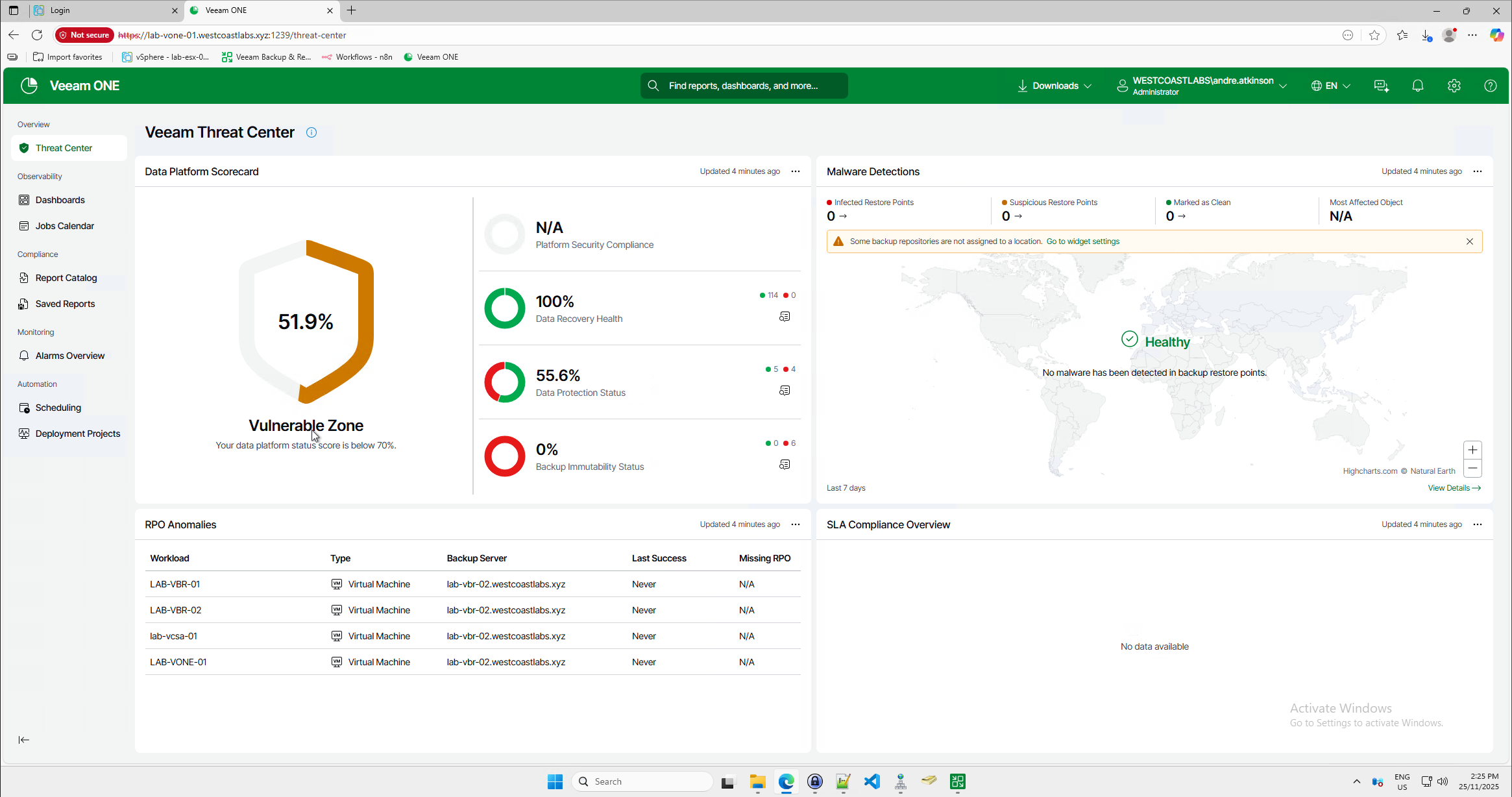
Setup:
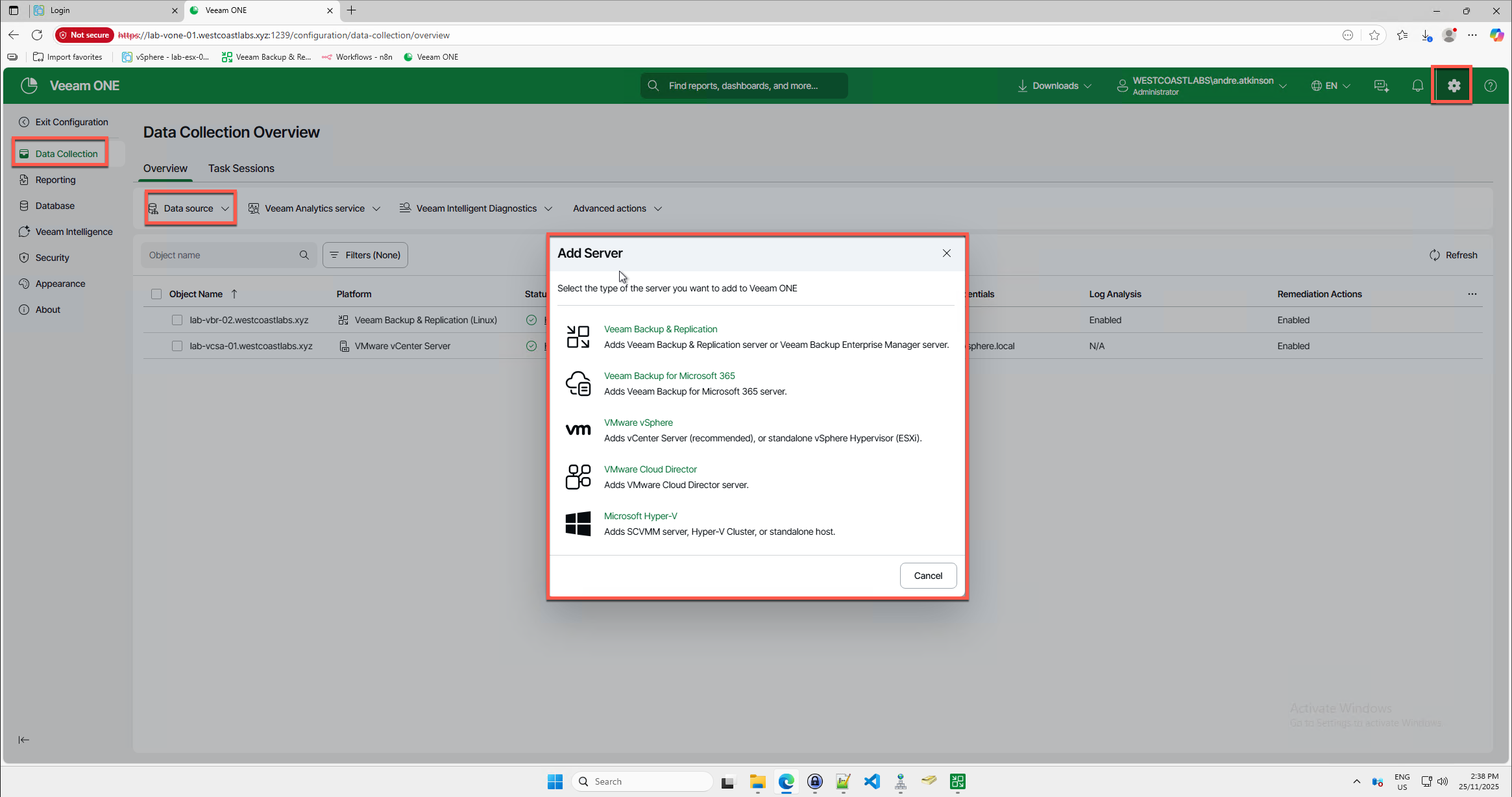
Step 1 will be to add your data sources:
- Click the gear icon on the top right
- Select Data Collection
- Select Data Sources
- Add Data Sources
In my case, I will add VBR & vCenter.
Once this is done, we can go back and open the dashboard tab. This will show us a bunch of pre-created dashboards based on what we have mapped, which in my case is VBR and vCenter.
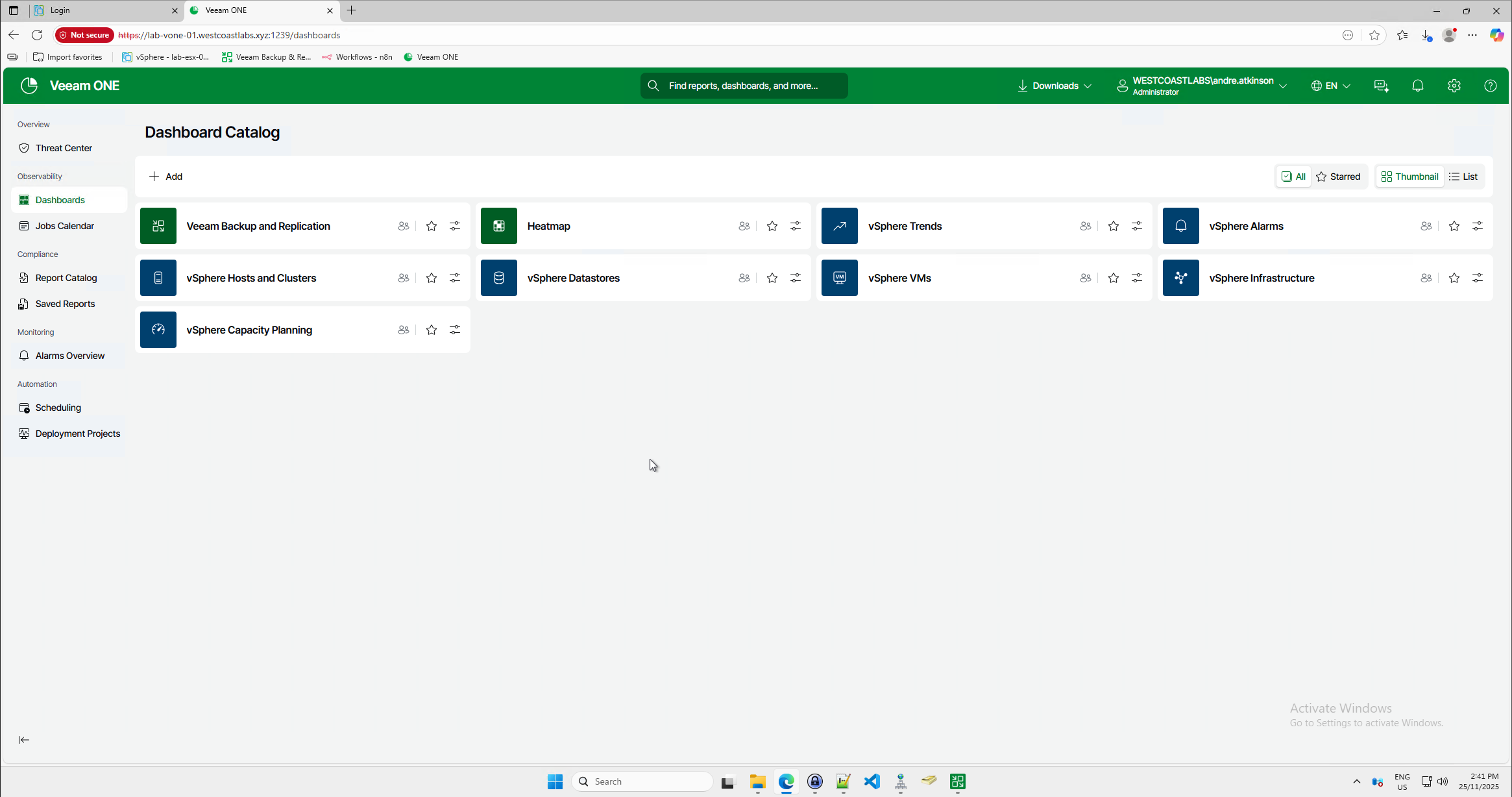
This allows us to very quickly get a glance of what is happening in our environment. I’m sure you can already see how powerful this is, but I’ll go into more detail anyway :) Being able to see both my VBR server and the vCenter server it’s protecting from a single pane of glass opens up a lot of event correlation aspects. A backup for a server failed last night AND the CPU also spiked to 100% utilization for 4 hours…well, that to me seems like either a massive DB query ran longer than expected or an encryption event encrypting that workload, which then can lead me to check how much change rate occurred on that server overnight.
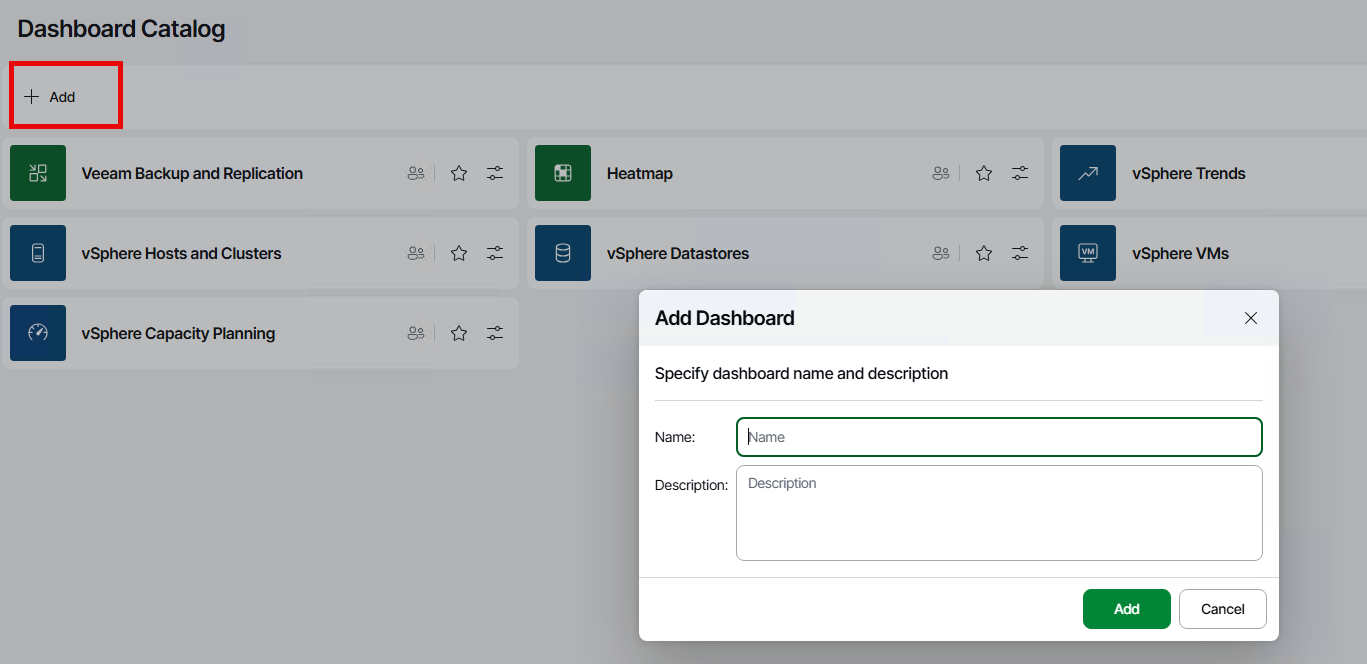
You can also add your own dashboard that you could leverage for a NOC, as an example, where they can keep a keen eye on your environment with the pre-created widgets:
- Click on Add
- Give your dashboard a name
- Provide a description
- Click on New Widget
- Give your widget a name
- Provide a description
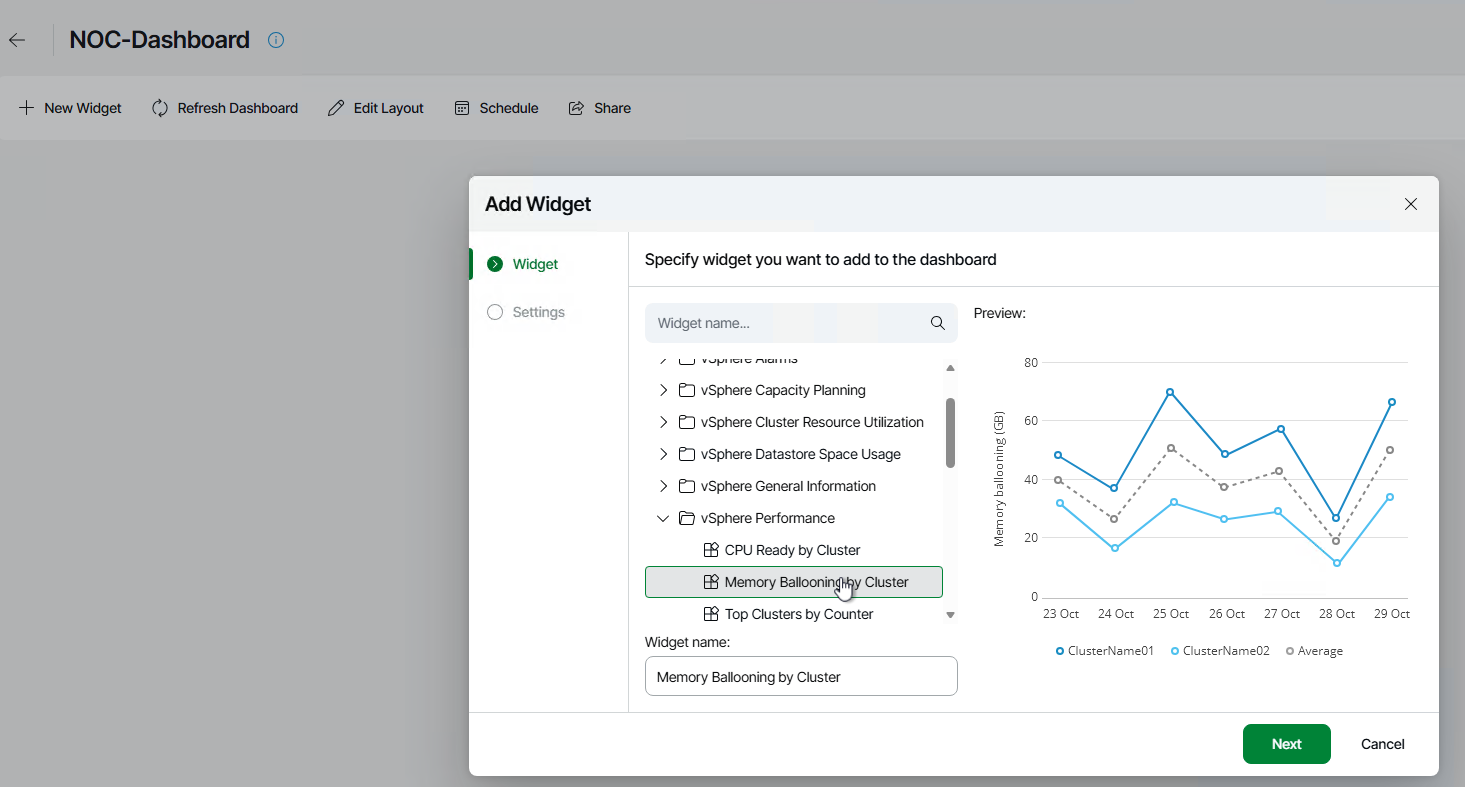
After selecting all the widgets you think would be relevant we end up with a dashboard like this:
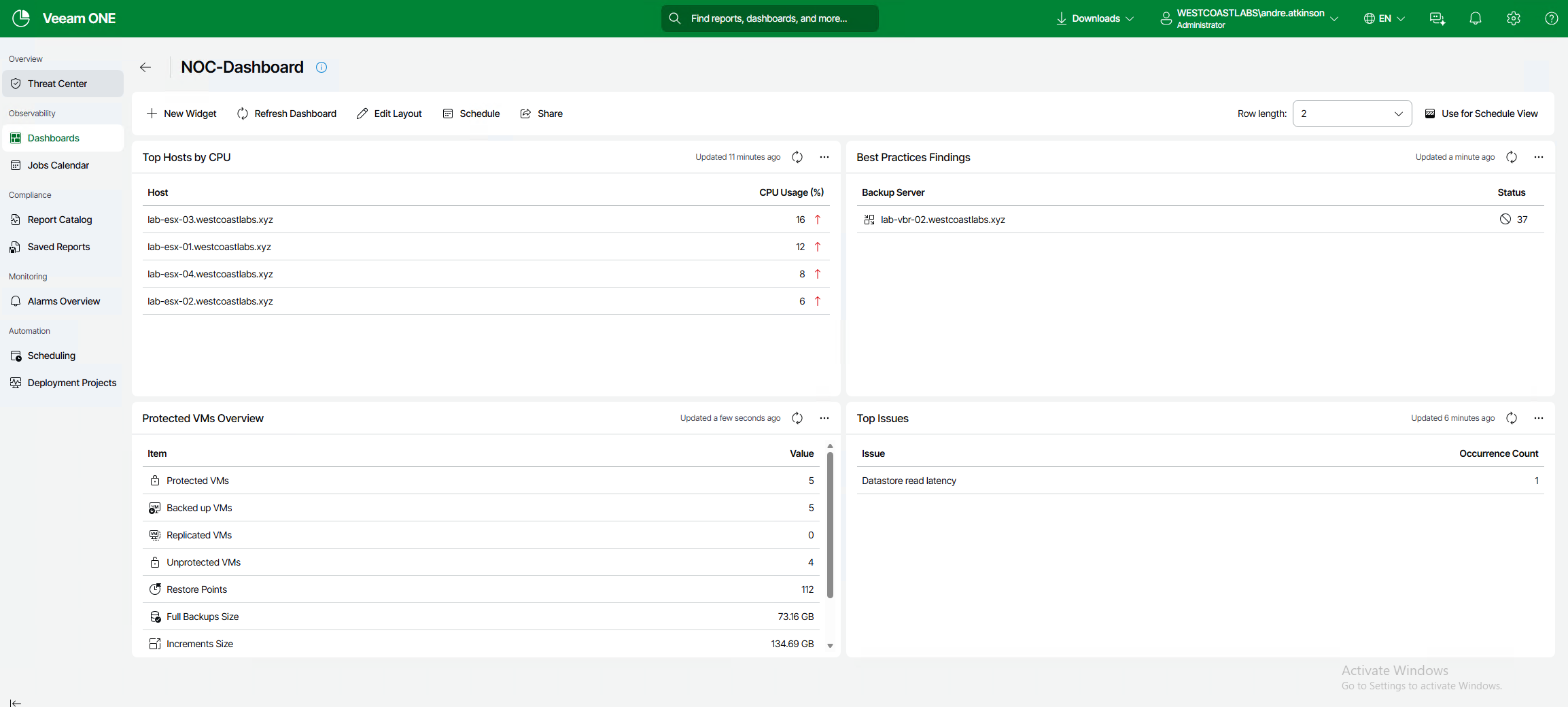
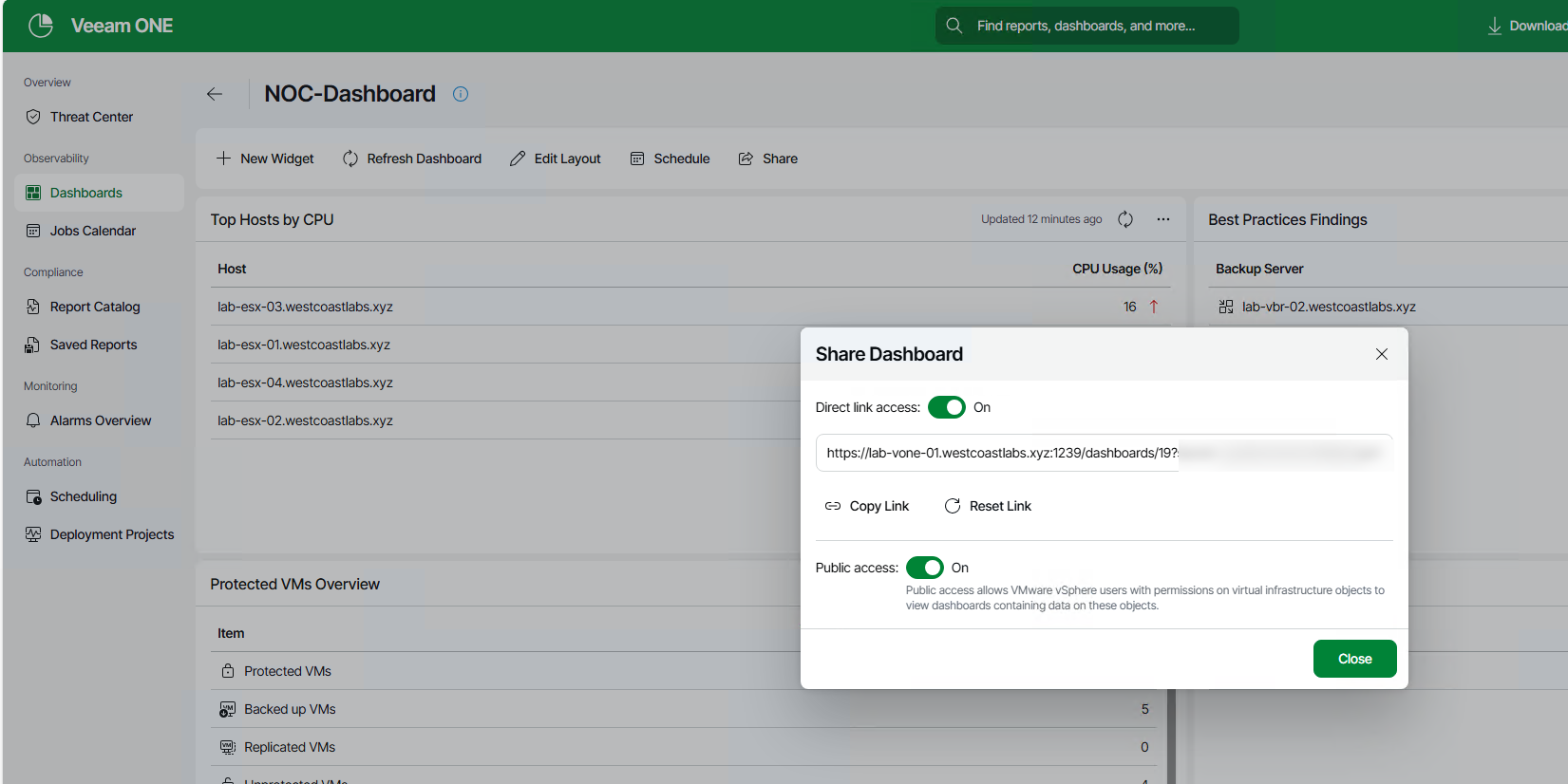
Finally, we can share this dashboard with the security team or the SOC team and have it displayed on the screens.
What’s Next?
Today we’ve covered the “Before” phase, understanding your data landscape, identifying risks, and ensuring compliance before you back up. This is your foundation.
Tomorrow on Day 9, we’ll move to the “During” phase: Inline Malware Detection & File System Activity Analysis. We’ll explore how Veeam protects your data as it’s being backed up, catching threats in real-time before they contaminate your backup repository.
Wrapping Up
I truly hope this highlights just how bridging the gap between security and data resilience is key. These two sides of the same coin should no longer be separated but should have seats at each other’s tables. The backup team and security truly need to work together.
See you tomorrow for Day 9 🎄